
For radio stations and their DJs
Voice-track a whole show from anywhere.
Your DJs record the links between songs, hear every transition exactly as it will air, and hand back a finished playlist. You review it, fine-tune it and burn it to one file — or send the voice tracks straight into RadioHost Studio. No studio time, no files flying around by email.
Free for your first playlist · Your RadioHost account works here
- Songs from Dropbox or Studio
- Record or upload
- Trim and clean up
- Set the segue
- Preview it
- Burn, or publish to Studio
How it works
From playlist to finished show in three steps
-
1
You build the playlist
Upload the songs (MP3, M4A, WAV, FLAC), pick them from your Dropbox, or link a RadioHost Studio show and use its songs as they are. Put them in running order, then assign the show to a DJ with a due date and a note.
-
2
Your DJ voices each break
They record straight into the browser — hearing the end of the song with a countdown — or upload a take, then trim it, clean it up and set exactly where they talk over the songs, previewing the real transition as they go.
-
3
You review and burn
You're emailed when it's submitted. Listen to every segue, adjust any of them, send it back with a note if needed — then burn the whole show to one MP3 or WAV with a cue sheet, or publish the voice tracks into Studio.
The transition, not just the take
Hear it exactly as your listeners will
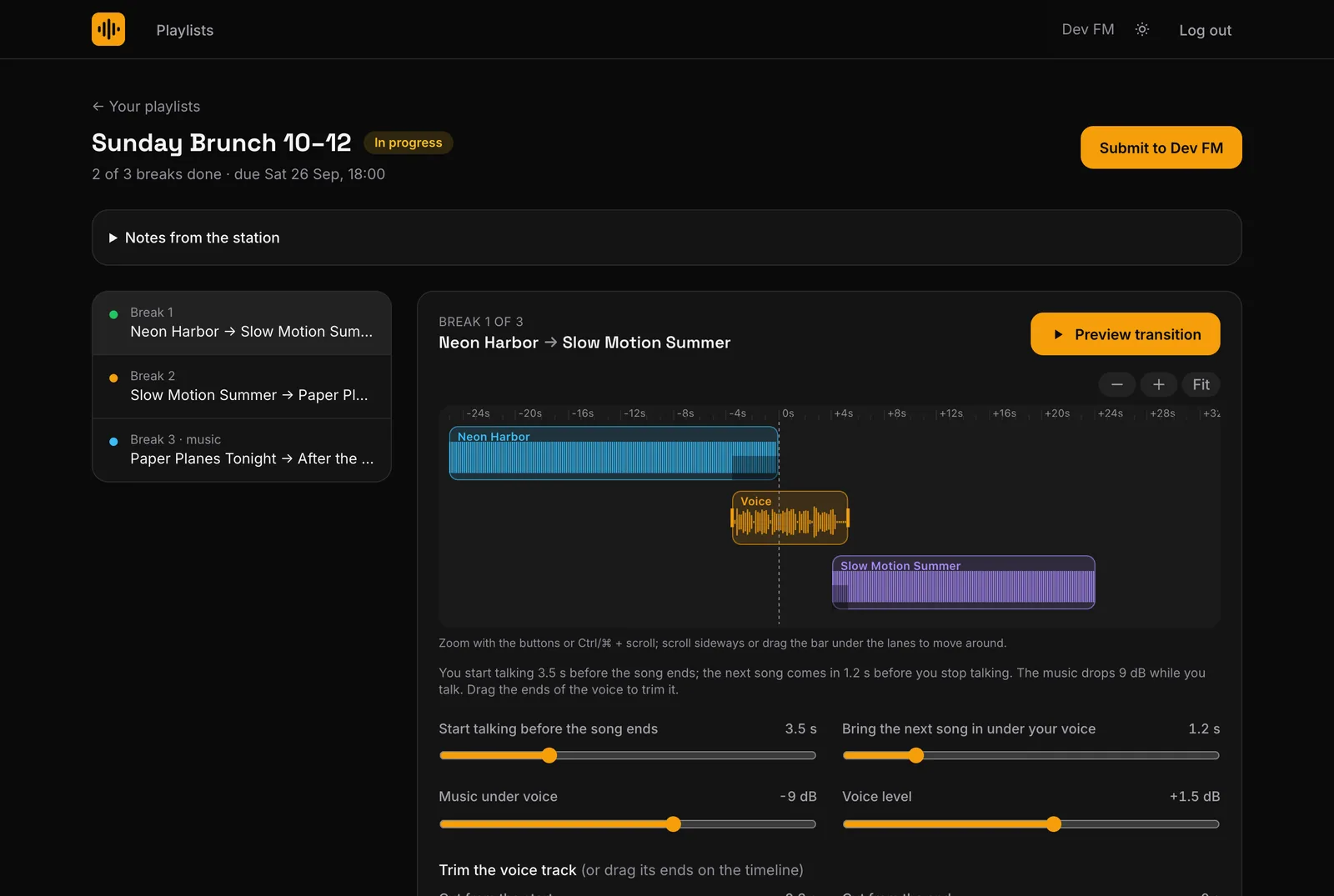
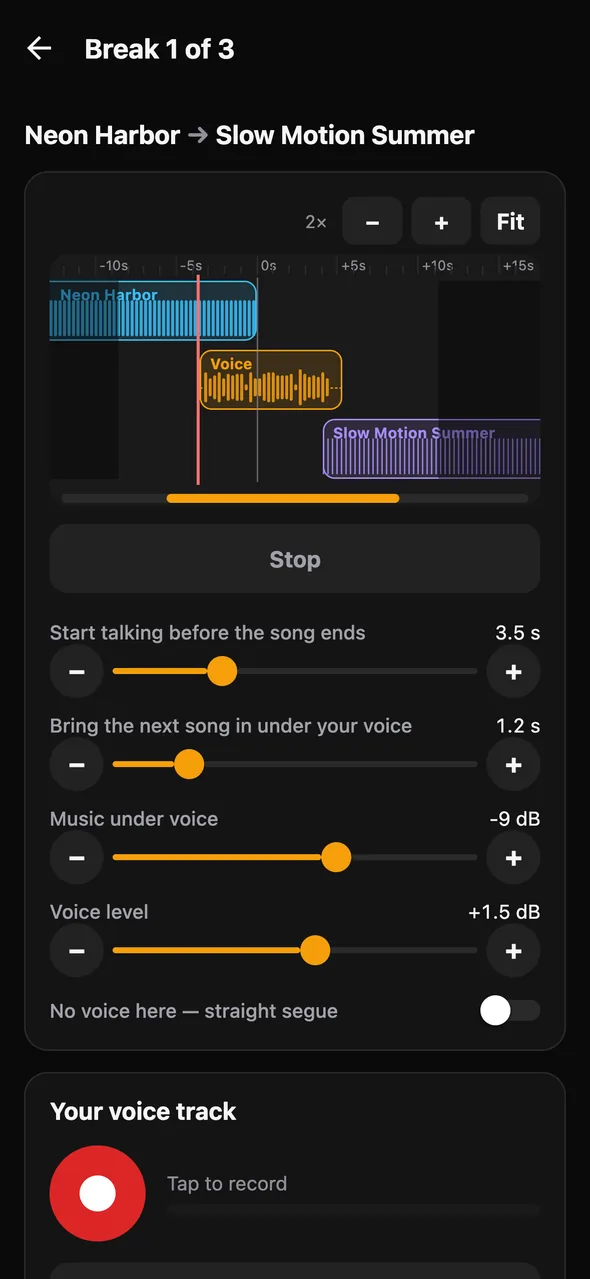
Every break shows the end of the last song, the voice and the start of the next on one timeline. Talk over the outro, bring the next song in under the last line, drop the music while you speak — and press Preview to hear the mix the station will air.
- Start talking before the song ends, to the tenth of a second
- Bring the next song in under your voice — up to a minute early for a long intro, typed to the tenth of a second
- Or press M while you record, at the moment the next song should start
- Choose how far the music drops while you talk, and your voice level
- Zoom in, follow the playhead, click anywhere to listen from there
- Preview just the ending of a long take, to hear the next song land without sitting through an interview
- See the show's running time, and how far it is from the hour
Built into RadioHost Studio
From the DJ's mic straight into your automation
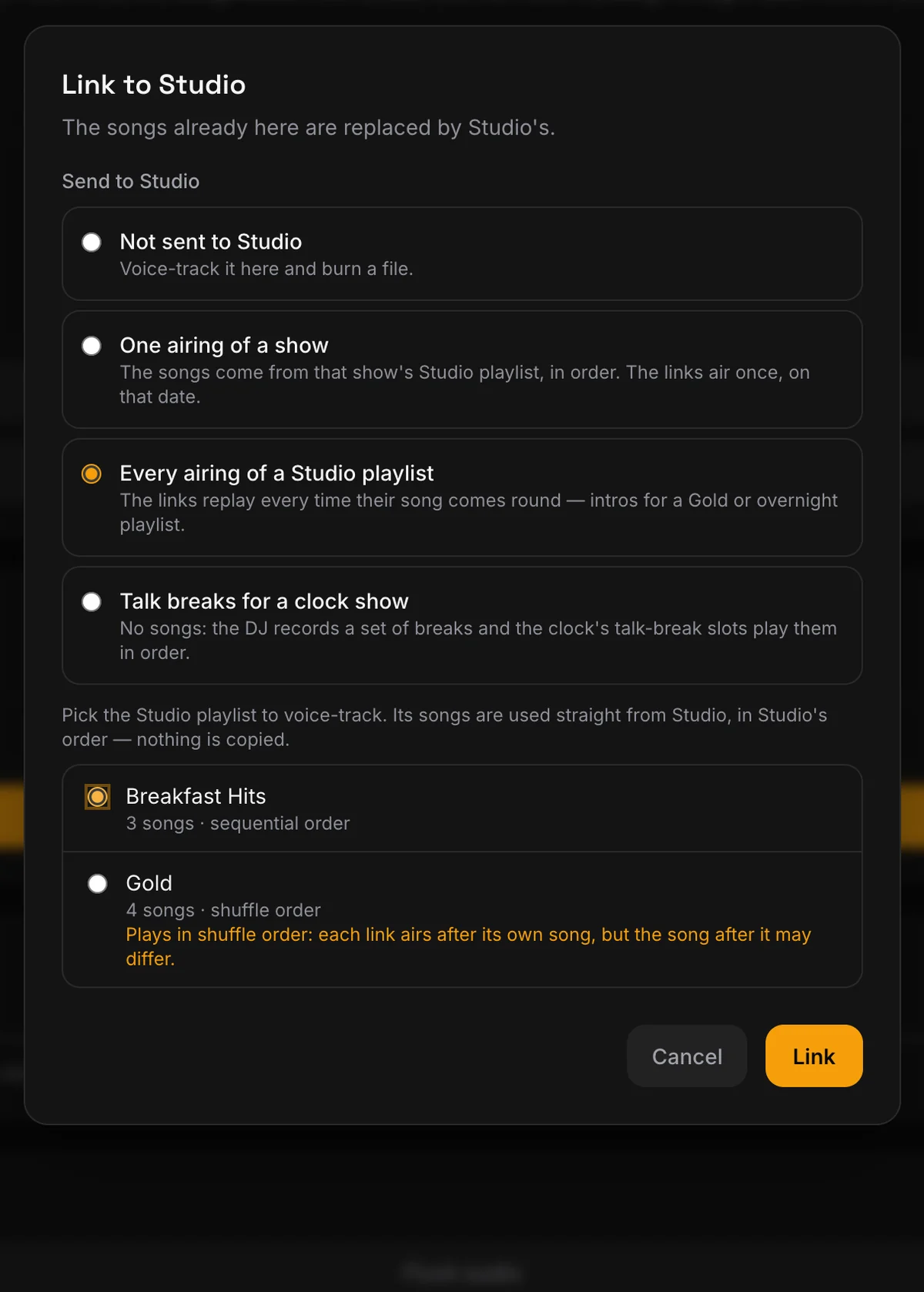
Running RadioHost Studio? Link a show and TrakVox voice-tracks it with the songs already in your automation. When the DJ is done, publish: the links land in Studio as native voice tracks, each one placed after its song, ready to air.
- One airing of a show, every airing of a Studio playlist, or talk breaks for a clock show
- The songs come from Studio as they are — nothing is copied, nothing to keep in sync
- Publish the voice tracks in one click; publish again to replace them, or withdraw them
- See each link's status in Studio, from processing to on air
Your music, wherever it lives
Pick songs straight from your Dropbox
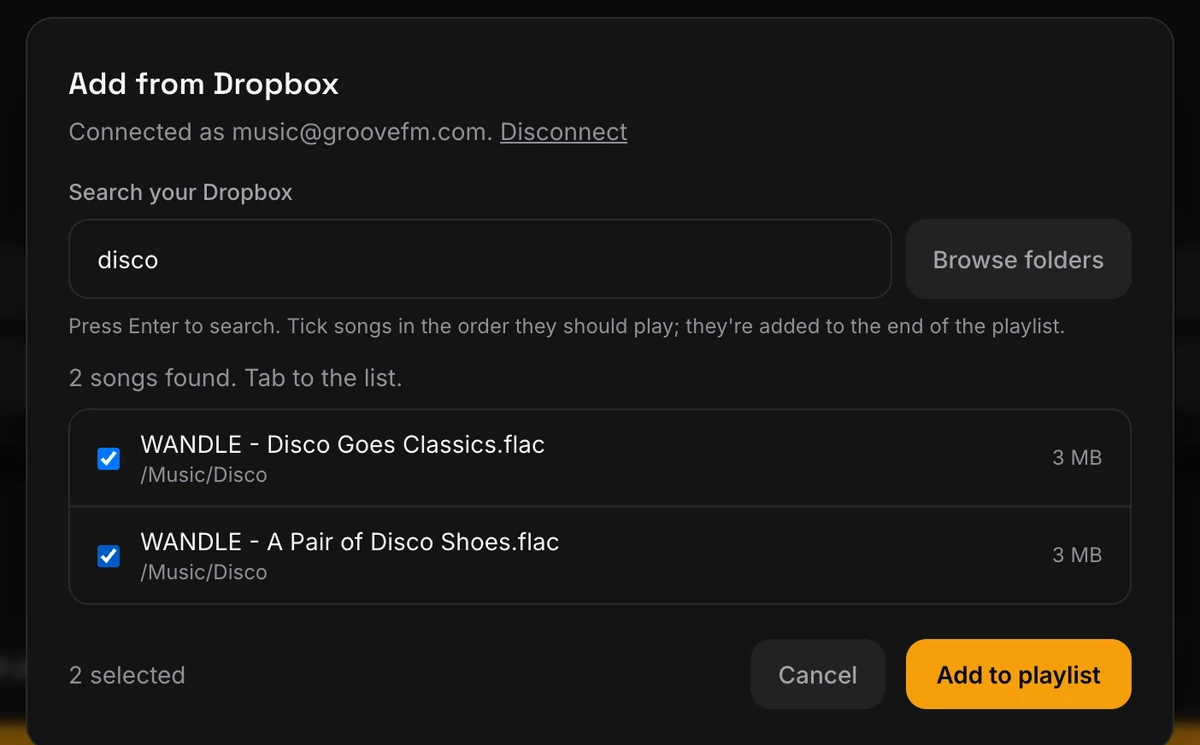
Connect your station's Dropbox once, then search or browse it from any playlist and tick the songs for the show. Only what you pick is copied in — a library of tens of thousands of tracks stays where it is.
- Search by name, or browse your folders
- FLAC, WAV, MP3 and more — titles, artists and albums read from the tags
- Import a whole playlist from Station Playlist or other playout software (.m3u) — tracks, spots and jingles fetched in order
- Or drop in a whole folder of files at once, or import from your RadioHost Studio library
Features
Everything between the songs
Record in the browser
No software to install. Hear the end of the song in your headphones, a countdown, then talk right up to it. Or upload a take you made elsewhere.
Trim in seconds
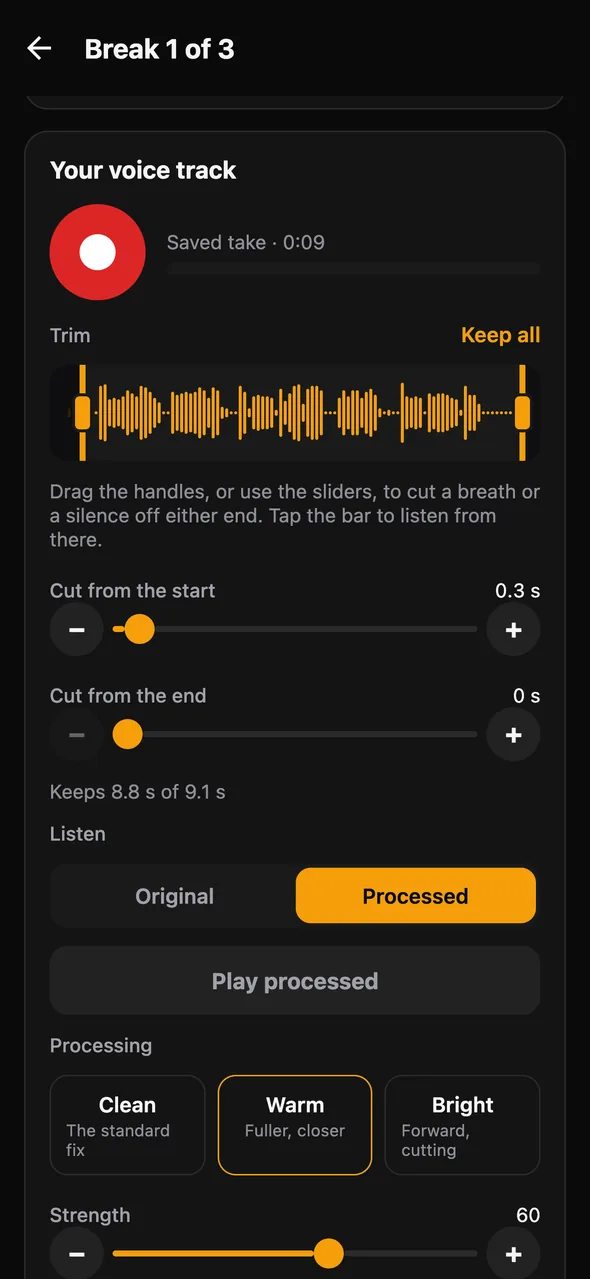
Drag the ends of the voice on the timeline, or use the sliders and hear each cut. The original is kept, so a trim can always be undone.
Studio processing
Clean, Warm or Bright, at the strength you choose, with room, doubling and EQ — and compare it with the original before you keep it.
Mouth clicks removed
One tick takes out the little lip and tongue clicks a close microphone picks up, before the voice is processed.
Music-only breaks
Not every break needs a link. Mark it as a straight segue or a music transition and set the crossfade.
Levels matched for you
Songs and voices are loudness-matched when the show is burned, so no link jumps out and no song drops away.
Running time, always
See how long the finished show runs and how far it is from the hour — and hear it read out as you go.
One file and a cue sheet
Burn the whole show to a 320 kbps MP3 or a 16-bit WAV in seconds, with a cue sheet of every song's start time, title, artist and album for your logs or Mixcloud — or a .cue file for Station Playlist.
Email at every step
DJs hear when a show is assigned or sent back; you hear when it is submitted and when the burn is ready.
Your whole team
Invite as many DJs as you need, by email. They sign in with a one-time code — nothing to install, no password to forget.
Built for screen readers
Shaped with a blind DJ: one-key and function-key shortcuts for every step, spoken cues, and your place kept as the page changes.
Keyboard first
Record, trim, use the take, place it and preview it without touching the mouse — every control is labelled and the timeline is described in words.
For station managers
You stay in charge of the sound
See every show's progress at a glance. Decide which breaks your DJ voices and which you mix yourself, adjust any segue right up to the burn, and flush a finished show's audio to free the space while keeping its record.
Create your station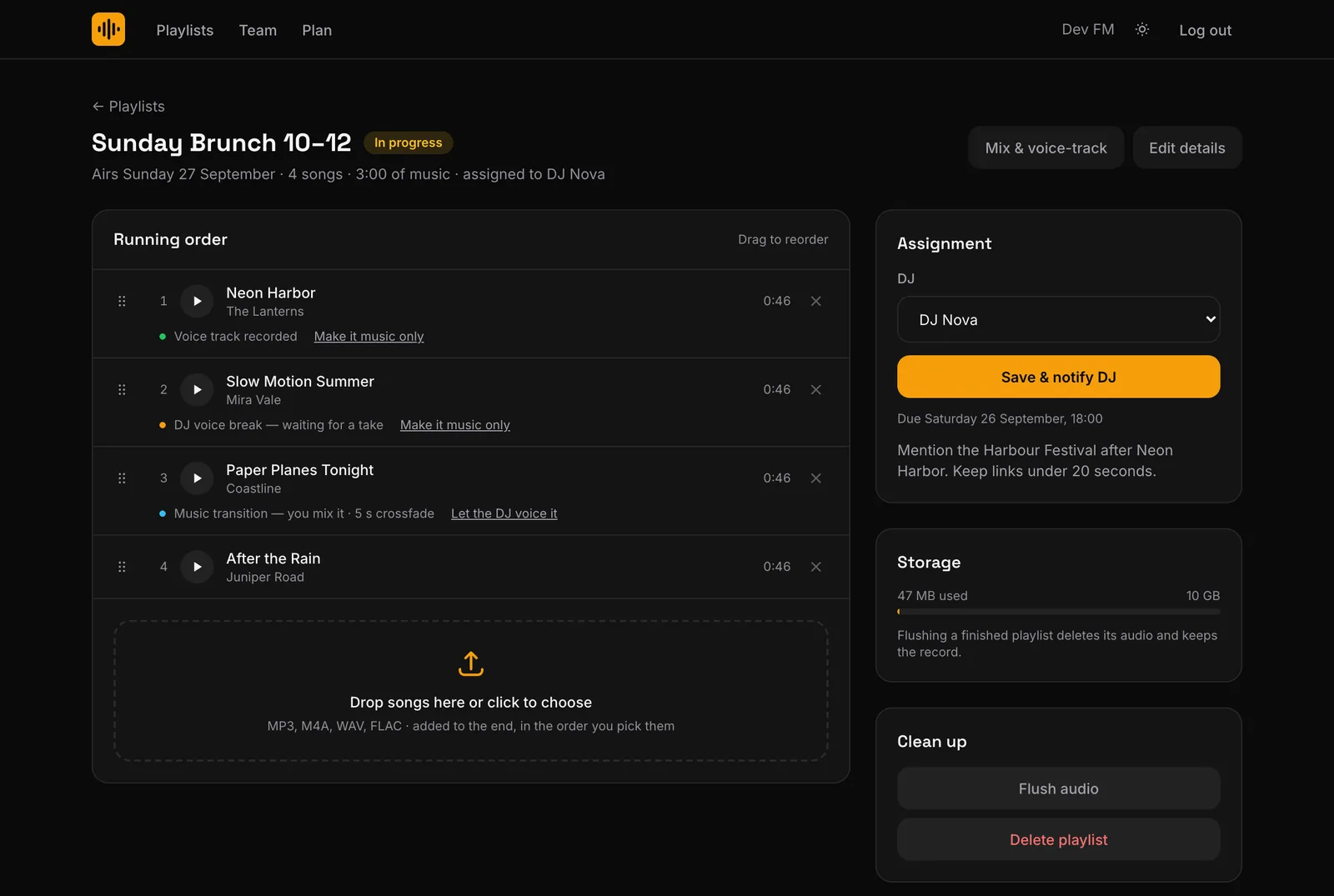
The TrakVox app for DJs
Voice your show from your phone
No laptop? No problem. TrakVox for iPhone and Android is free, and your assigned shows are already in it. Find a quiet corner, voice the breaks and send the show back to your station.
- See the shows assigned to you, with due dates and the station's notes
- Record each break on your phone, or choose a recording already on it
- Trim the take, remove mouth clicks, choose Clean, Warm or Bright, and compare it with the original
- Set when you start talking, when the next song comes in, how far the music drops and your voice level
- Preview the real transition, mixed on our servers the way a burn is
- Submit to your station when every break is done
Sign in with the email your station added. How to use the app
Pricing
Simple, per station. Free for DJs.
Try it on a real show before you pay anything.
Free
$0
No card, no time limit
- 1 playlist, start to finish
- 1 GB of storage
- Every feature, as many DJs as you like
Pro
Most stations$99 / year
Per station, + applicable sales tax / VAT
- Unlimited playlists
- 10 GB of storage
- Every feature, as many DJs as you like
Need more room? Add storage to Pro: +10 GB $29/yr · +25 GB $59/yr · +100 GB $179/yr
Billed yearly through your RadioHost account. Cancel any time; you keep Pro until the year you paid for ends.
FAQ
Questions stations ask
Do my DJs have to pay?
No. The station subscribes; DJs are invited by email and use TrakVox for free.
Do I need a RadioHost account?
No — creating your station here sets one up for you. If you already use RadioHost, sign in with the same email and your station is ready.
What does a DJ need?
A microphone and a modern browser on a computer or phone. Or the free TrakVox app for iPhone and Android. Recordings are processed on our servers, so any laptop will do.
Does it work with RadioHost Studio?
Natively. Link a show and its songs come straight from Studio — nothing is copied — then publish the voice tracks into Studio, where they air as native links after their songs. It works for one airing, for every airing of a Studio playlist, and for a clock show's talk breaks.
Can I use songs from Dropbox?
Yes. Connect your station's Dropbox once, then search or browse it from any playlist and tick the songs you want. Only those are copied in; TrakVox only ever reads your Dropbox.
Can I get a tracklist for Mixcloud or my logs?
Every burn comes with a cue sheet: a spreadsheet with each song's track number, title, artist, album, start time in the file and length. There is also a classic .cue file, named to sit beside the show, which Station Playlist reads to show what is playing as it goes out.
Can I bring in a playlist from my playout software?
Yes. Import an .m3u from Station Playlist or similar: TrakVox finds each track, spot and jingle in your Dropbox and adds them in order, and leaves the break after a jingle or spot as music only.
Can a blind DJ use it?
Yes — it was shaped with one. Every step works from the keyboard with one-key or function-key shortcuts, the screen reader is told what is happening, and your place is kept as the page updates.
What file formats work?
Songs: MP3, M4A, AAC, WAV, FLAC or OGG. Voice takes can also be Opus or WebM. The finished show comes out as a 320 kbps MP3 or a 16-bit, 44.1 kHz WAV.
How long does the free plan last?
There is no time limit. It covers one playlist from start to finish, so you can try the whole workflow on a real show.
What happens to the audio after a show airs?
It stays until you flush it. Flushing deletes the songs, voice tracks and burned files to free your storage, and keeps the playlist's record.
Can I change a DJ's segue?
Yes. Managers can adjust any break's timing, ducking and voice level at any point before the audio is flushed, and re-burn.
Your next show, voiced from anywhere
Set up your station in a minute and try it on a real playlist.